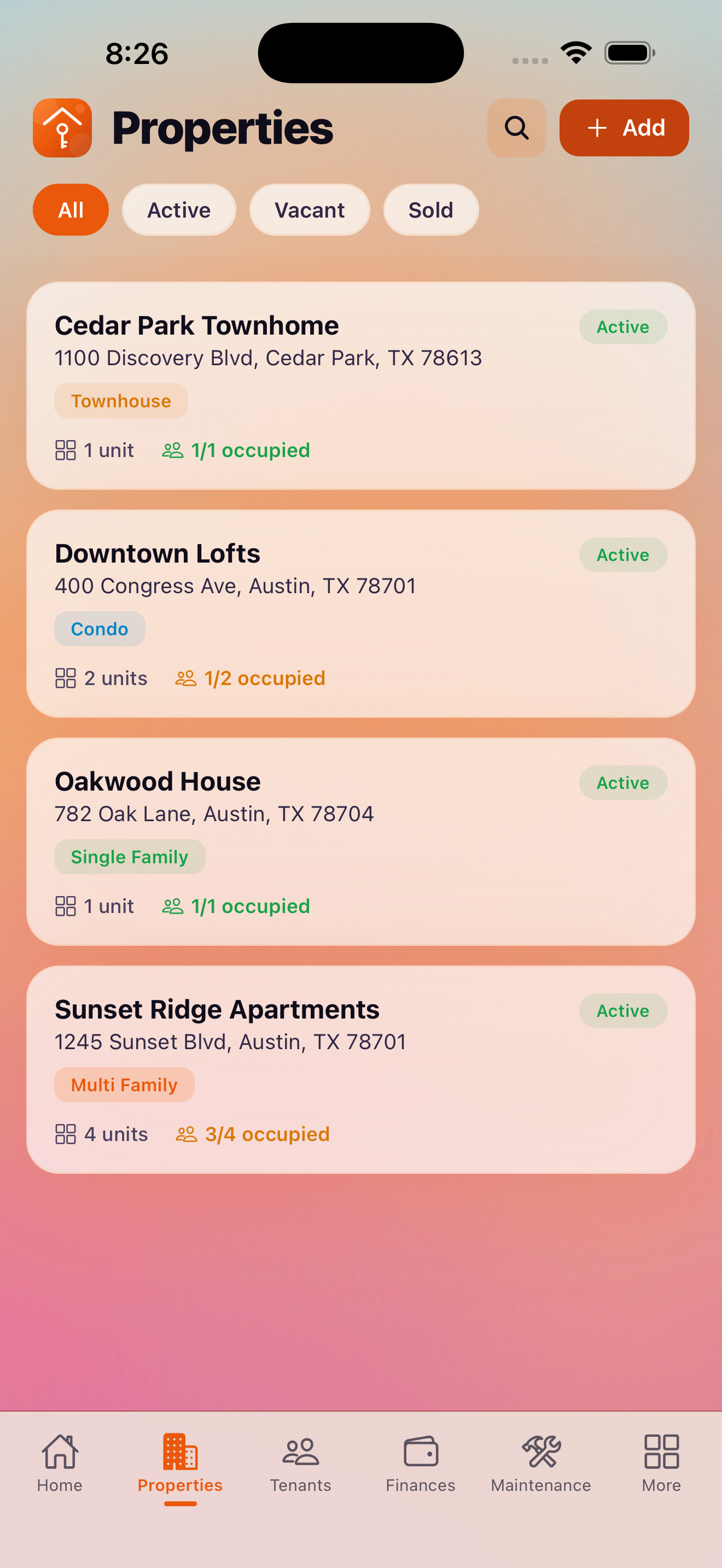
The Properties tab is where you manage every property in your portfolio. You can add single-family homes, multi-unit buildings, condos, or commercial spaces — and drill into each property's financials, tenants, and maintenance history.
Adding a Property
To add a new property, tap the + button on the Properties screen and fill in the details:
- Address — street address, city, state, and zip code
- Property type — single family, multi-unit, condo, townhouse, commercial, or other
- Purchase price — used for depreciation and ROI calculations
- Purchase date — the date you acquired the property
- Property status — active, vacant, or inactive
The Free plan supports up to 2 properties. Upgrade to Pro for unlimited properties.
Adding Units Within a Property
For multi-unit properties, you can add individual units within a property. Each unit tracks its own tenant, lease, rent amount, and maintenance requests. To add a unit:
- Open a property from the Properties screen
- Tap the Units section and tap Add Unit
- Enter the unit number or name (e.g., "Unit 1A" or "Basement Apartment")
- Set the unit's status
Property Details and Financial Overview
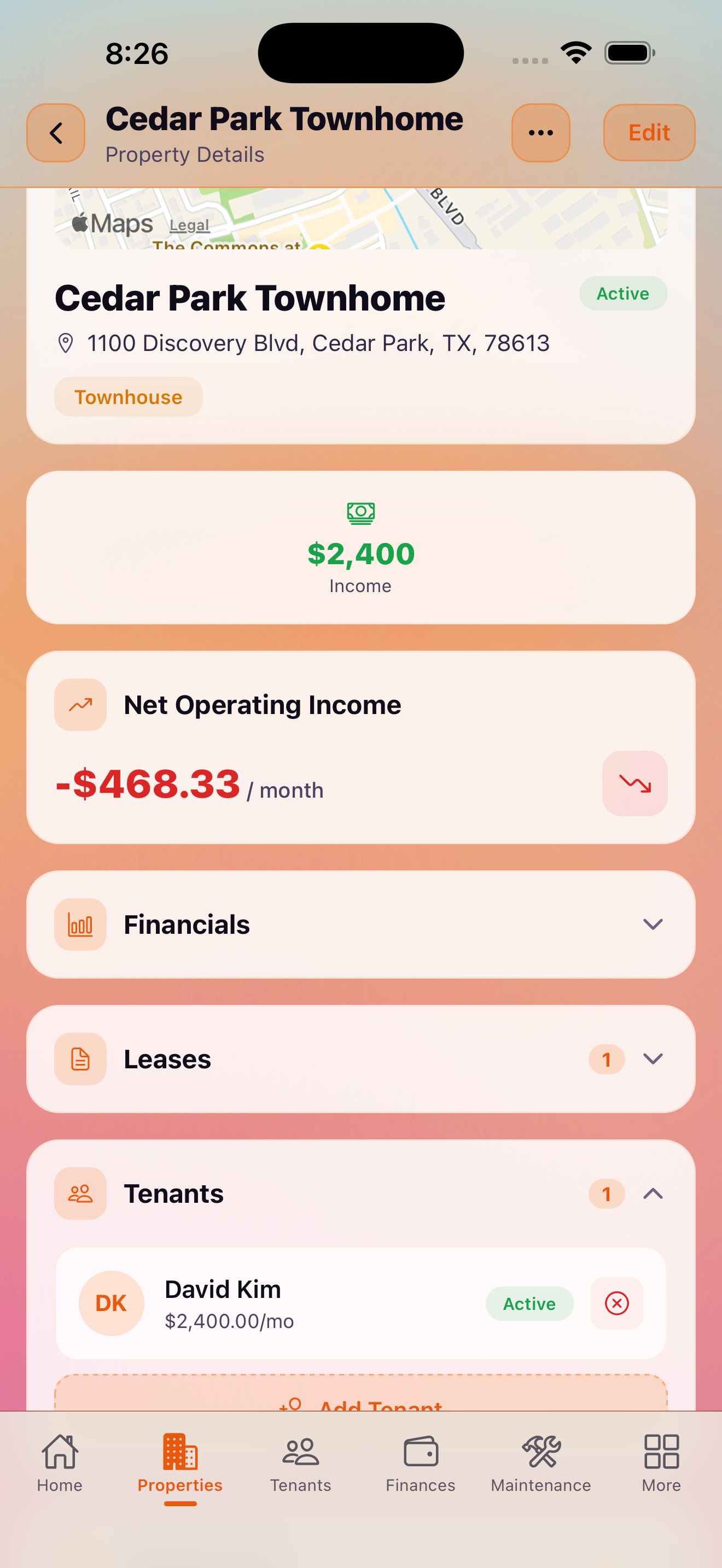
Tap any property to open its detail view. From here you can see:
- Financial summary — total income, expenses, and net operating income for the property
- Tenants — all current tenants assigned to this property or its units
- Maintenance — open and completed maintenance requests for this property
- Expenses — all expenses logged against this property
- Notes — free-form notes about the property
Property Photos
You can attach photos to each property to keep a visual record. Photos are stored locally on your device and are included in iCloud backup. To add photos, open the property and tap the photo section to take a new photo or select from your library.
Property Status Management
Each property can be set to one of three statuses:
- Active — currently rented or in active use
- Vacant — not currently occupied, flagged on the dashboard
- Inactive — removed from active portfolio view (sold, removed, etc.)
The dashboard shows your occupancy rate based on the number of active vs. vacant units across all your properties.
Pro tip: Marking a property as Vacant triggers a vacancy alert in the Tasks section, reminding you to find a new tenant.
What's Next
After adding your properties, the next step is to add tenants and create leases:
Start managing your properties today
Download KeyLoft™ free and add your first property in under a minute.
Download on the App Store