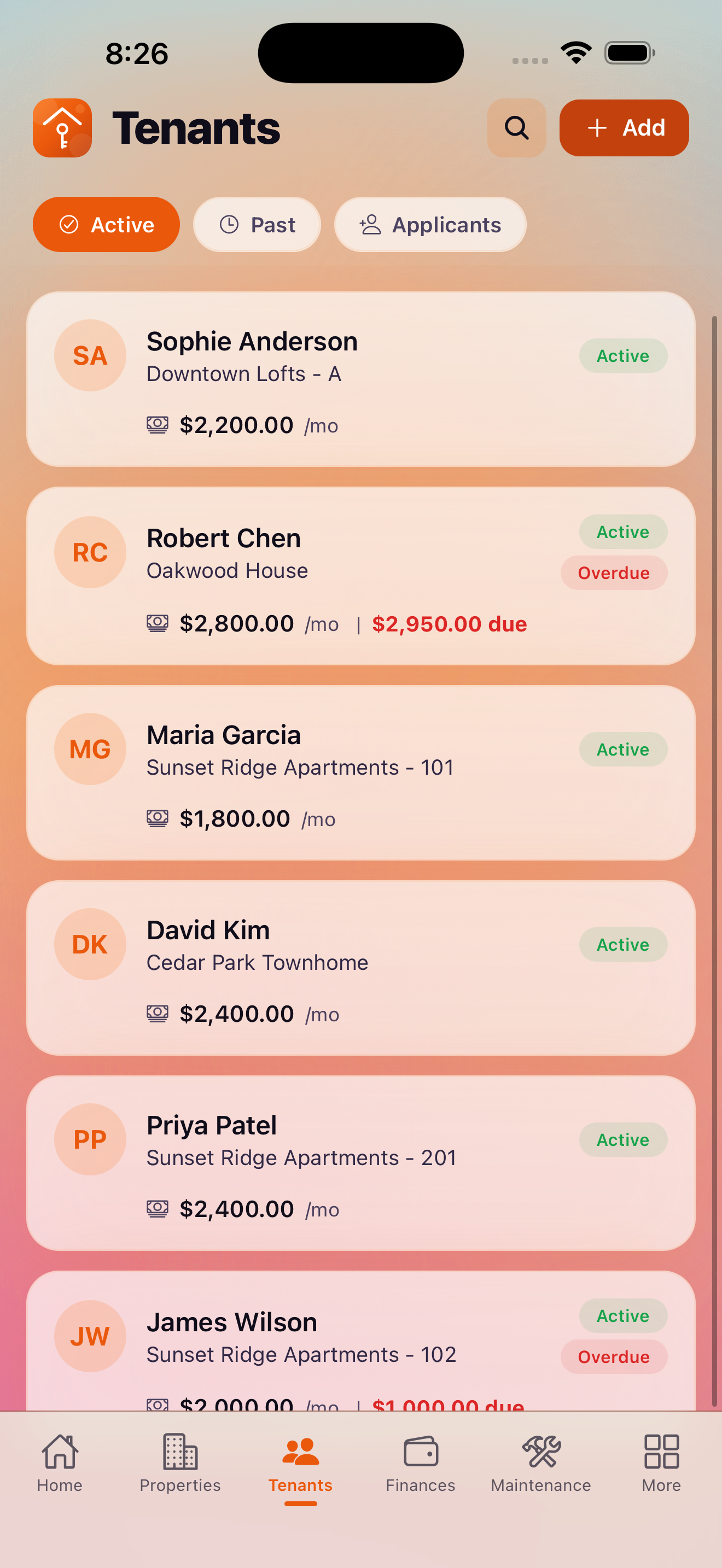
The Tenants tab keeps all your tenant information in one place — contact details, lease terms, payment history, and outstanding balances. Every tenant is linked to a property or unit so KeyLoft™ can track rent automatically.
Adding a Tenant
To add a tenant, tap the + button on the Tenants screen. You'll fill in:
- Full name — the tenant's legal name
- Email address — used for rent reminder emails (Pro)
- Phone number — for quick contact
- Employment information — employer name and contact (optional)
- Emergency contact — name and phone number (optional)
- Property and unit — which property or unit this tenant occupies
The Free plan supports up to 2 tenants. Upgrade to Pro for unlimited tenants.
Creating a Lease
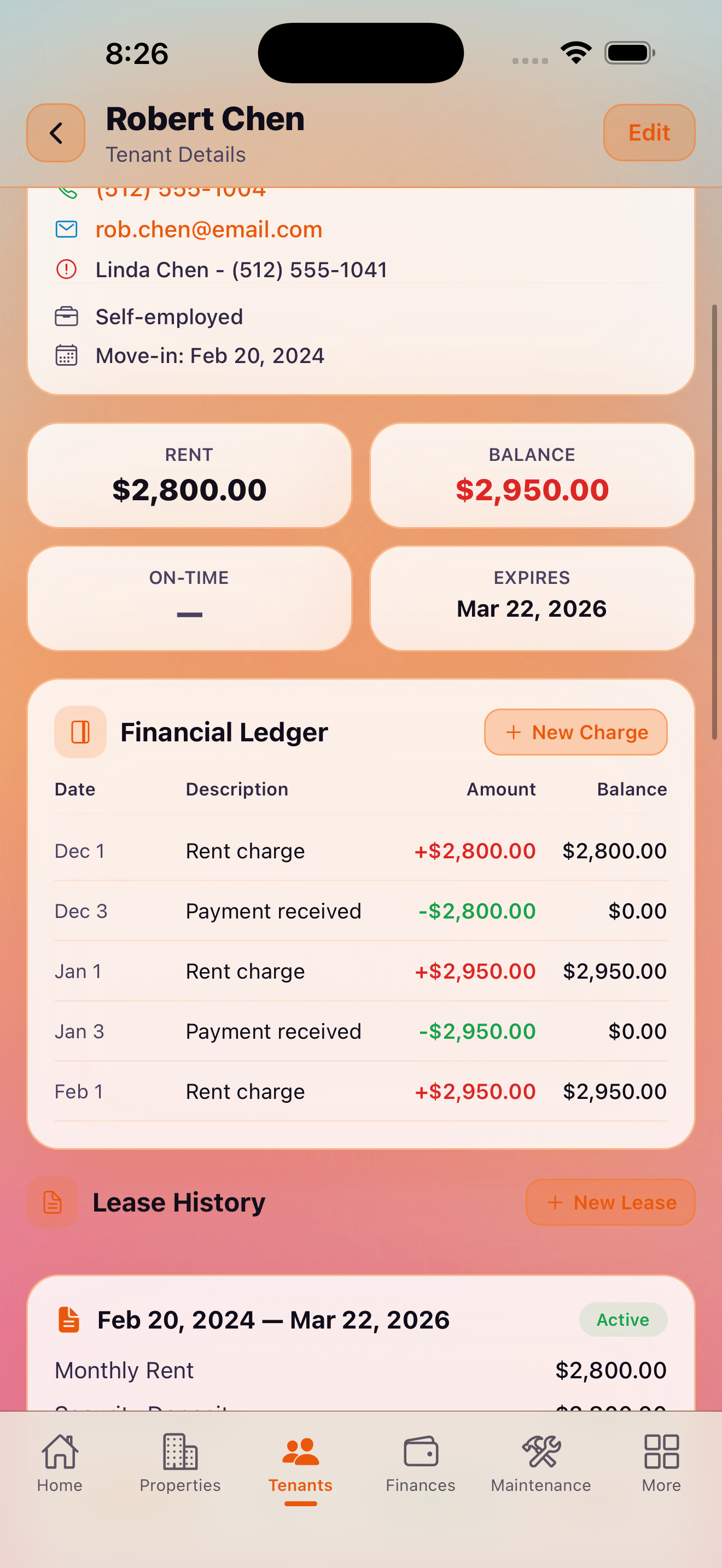
After adding a tenant, create a lease to define the rental terms. A lease captures:
- Lease start and end dates — defines the lease period
- Lease type — fixed-term, month-to-month, or other
- Monthly rent amount — the base rent due each period
- Rent due day — which day of the month rent is due
- Security deposit amount — tracked separately from rent
- Security deposit date received — for tracking return deadlines
- Late fee settings — grace period days and late fee amount
Lease Types
KeyLoft supports the most common lease structures:
- Fixed-term — a lease with a defined start and end date. Auto-generates a lease expiration task as the end date approaches.
- Month-to-month — an ongoing lease with no fixed end date
Lease Renewals
When a lease is approaching its end date, KeyLoft automatically generates a task reminding you to renew or decide what to do next. With Pro, the Proactive Follow-ups feature can send you automated reminders on a schedule you configure. To renew a lease:
- Open the tenant's profile
- Tap on the lease to view lease details
- Update the end date and any new rent amount
- Save the updated lease
Tenant Status Tracking
Each tenant has a status that reflects their current situation:
- Active — currently occupying the property with an active lease
- Past due — rent is overdue; shown with a warning indicator on the dashboard
- Former — tenant has moved out; lease is ended
The Tenant Financial Ledger
Tap any tenant to open their detail view, which includes a full financial ledger showing all charges, payments, and the current balance. This gives you a complete audit trail for every tenant relationship.
Pro tip: Use the Rent Roll report (under More → Finances) to see a summary of all tenants, their lease terms, and rent amounts at a glance.
What's Next
- Set up rent charges and record payments
- Configure payment methods and PDF invoices
- View auto-generated lease tasks
Keep all your tenant info organized
Download KeyLoft and add your first tenant in minutes.
Download on the App Store